原文来源:How to Set Up a VPS from Scratch (Complete Beginner Guide)
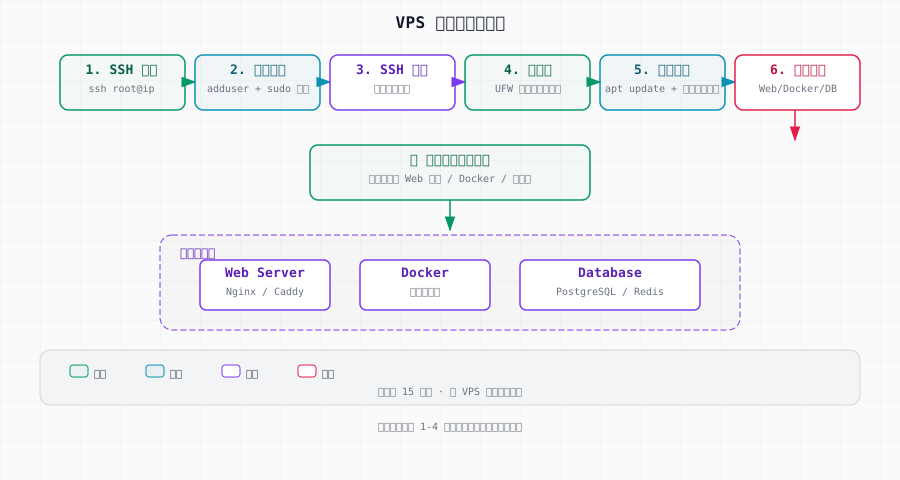
快速上手: 1) SSH root 登录。2) 创建一个有 sudo 权限的普通用户。3) 设置 SSH 密钥登录并禁用密码登录。4) 配置 UFW 防火墙。5) 更新所有软件包。6) 按需安装。全程约 15 分钟。
需要 VPS 吗? Vultr(免费额度)、DigitalOcean($200 免费额度)或 RackNerd(便宜年付套餐)。
选择服务商
| 服务商 | 起步价 | 适合场景 |
|---|---|---|
| DigitalOcean | $4/月 | 新手友好,界面清爽 |
| Vultr、RackNerd | $3.50/月 | 性价比高,节点多 |
| Hetzner | $3.29/月 | 欧洲线路,性价比最高 |
| Linode | $5/月 | 稳定可靠 |
| AWS Lightsail | $3.50/月 | AWS 生态 |
新手推荐配置:
- 1 vCPU、1 GB RAM、25 GB SSD ——跑 Web 服务器、代理或 VPN 足够
- Ubuntu 22.04 LTS 或 Debian 12 ——大多数教程以这两个系统为准
- 选择离你的用户最近的数据中心
第一步:首次登录
服务商会给你 IP 和 root 密码。SSH 登录:
bash
ssh root@你的服务器IP第一次连接时,你会看到:
plaintext
The authenticity of host 'x.x.x.x' can't be established.
ED25519 key fingerprint is SHA256:xxxxx
Are you sure you want to continue connecting (yes/no)?
输入 yes。
第二步:更新所有软件包
bash
apt update && apt upgrade -y这会把所有软件包更新到最新版本。每次登录新服务器,先做这一步。
第三步:创建非 root 用户
日常操作永远不要用 root。创建一个有 sudo 权限的普通用户:
bash
# 创建用户
adduser sam

# 加入 sudo 组
usermod -aG sudo sam

# 验证
groups sam
# 应显示:sam sudo
第四步:设置 SSH 密钥
在你的本地电脑上:
bash
# 生成密钥(如果还没有)
ssh-keygen -t ed25519

# 把公钥复制到服务器
ssh-copy-id sam@你的服务器IP
测试:
bash
ssh sam@你的服务器IP
# 应该无需密码直接登录
然后禁用密码登录:
bash
sudo nano /etc/ssh/sshd_config修改:
plaintext
PasswordAuthentication no
PermitRootLogin no
bash
sudo systemctl restart sshd详见 SSH 密钥设置指南 和 SSH 加固指南。
第五步:配置防火墙
bash
# 放行 SSH(先放行再开启防火墙!)
sudo ufw allow 22/tcp

# 启用防火墙
sudo ufw enable

# 按需放行其他服务
sudo ufw allow 80/tcp      # HTTP
sudo ufw allow 443/tcp     # HTTPS

# 查看状态
sudo ufw status
详见 UFW 速查表。
第六步:设置时区和主机名
bash
# 设置时区
sudo timedatectl set-timezone America/Chicago
# 或者:sudo dpkg-reconfigure tzdata

# 设置主机名
sudo hostnamectl set-hostname myserver

# 验证
timedatectl
hostname
第七步:安装常用工具
bash
# 基础工具
sudo apt install -y \
  curl wget git htop \
  unzip vim nano \
  ufw fail2ban \
  build-essential

# 安装 Fail2ban 防暴力破解
sudo systemctl enable --now fail2ban
第八步:开启自动安全更新
bash
sudo apt install unattended-upgrades -y
sudo dpkg-reconfigure unattended-upgrades
# 选择 "Yes"
这会让系统自动安装安全补丁。
按需安装后续软件
看你打算做什么:
Web 服务器
bash
sudo apt install nginx -y
sudo systemctl enable --now nginx
sudo ufw allow "Nginx Full"
# 获取 SSL 证书:sudo apt install certbot python3-certbot-nginx -yDocker
bash
curl -fsSL https://get.docker.com | sh
sudo usermod -aG docker sam
# 注销再登录,组权限才会生效
详见 Docker 速查表。
VPN(WireGuard)
bash
sudo apt install wireguard -y
# 或使用 SamNet-WG 简化管理:
curl -sSL https://raw.githubusercontent.com/SamNet-dev/wg-orchestrator/main/install.sh | sudo bash
详见 WireGuard 搭建指南。
代理服务器(3X-UI)
bash
bash <(curl -Ls https://raw.githubusercontent.com/mhsanaei/3x-ui/master/install.sh)详见 3X-UI 搭建指南。
数据库
bash
# PostgreSQL
sudo apt install postgresql -y

# MySQL
sudo apt install mysql-server -y

# Redis
sudo apt install redis-server -y
配置完成自查清单
bash
echo "=== VPS 配置完成自查 ==="
echo "系统更新:$(apt list --upgradable 2>/dev/null | wc -l) 个待更新包"
echo "当前用户:$(who | awk '{print $1}' | head -1)"
echo "SSH 密钥认证:$(grep PasswordAuthentication /etc/ssh/sshd_config | head -1)"
echo "Root 登录:$(grep PermitRootLogin /etc/ssh/sshd_config | head -1)"
echo "防火墙:$(sudo ufw status | head -1)"
echo "Fail2ban:$(systemctl is-active fail2ban)"
echo "自动更新:$(systemctl is-active unattended-upgrades 2>/dev/null || echo '请手动检查')"
echo "时区:$(timedatectl | grep 'Time zone')"
echo "主机名:$(hostname)"